Introduction
This guide will go over an assortment of common issues you may encounter while working with GitHub, as well as a few helpful things you can do to streamline your workflow.
Note: You can always ask any editor or staff for help with GitHub at any time.
Frequently Used Terminology
⬥ Repository
• A collection of all the files and folders for a single project, that is tracked and version controlled.
⬥ Fork
• A copy of an entire repository. A user can fork a repository to get a personal copy.
⬥ Commit
• Essentially a 'snapshot' of your repository. Think of it like a checkpoint in a video game. Going back to a particular commit shows the entire repository as it was at that point in time. You commit after making your changes, to prepare for a pull request.
⬥ Pull Request
• A request to merge your changes into the main repository, to be accepted by someone with appropriate permissions.
Common Problems
Failed Checks
⬥ PvME GitHub is set up to automatically check for valid formatting and styling. There are a number of checks, such as:
• Trailing whitespace - extra space at the end of a line
• Improper spacing around emojis - emojis must be surrounded by a space on either side
• Message length exceeded (too many characters) - messages cannot exceed 2000 characters
• Invalid embed formatting - creates an invalid embed object.
• Invalid commands - any .command: used must be a valid command.
⬥ Checks failing can be avoided by using the web editor (https://pvme.github.io/guide-editor/) to edit your content before adding it to GitHub, as it runs the same style checks that pull requests use. For more information check out, Guide Editor.
⬥ If your pull request fails due to a check, it will inform you. Click on Details on the check to see why it has failed, and what you can do to fix it.
⬥ Consider the following example:
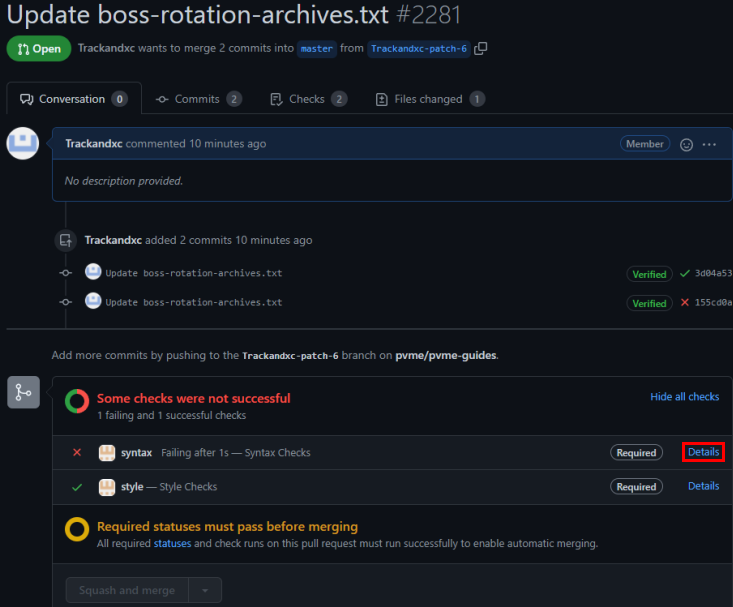
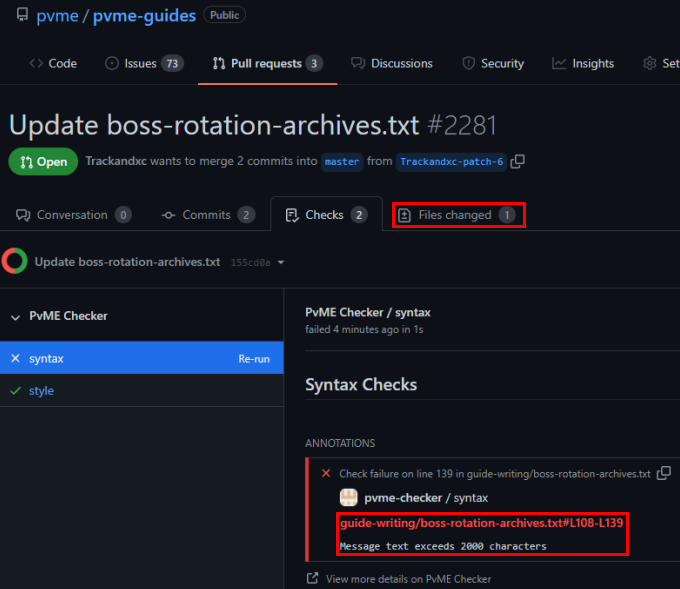 ⬥ The bottom red square tells you what the error is. In this case, the message starting at line 108 and ending at line 139 has too many characters.
⬥ To fix this, click the Edit File option in the following image, to open up editing again to make appropriate changes.
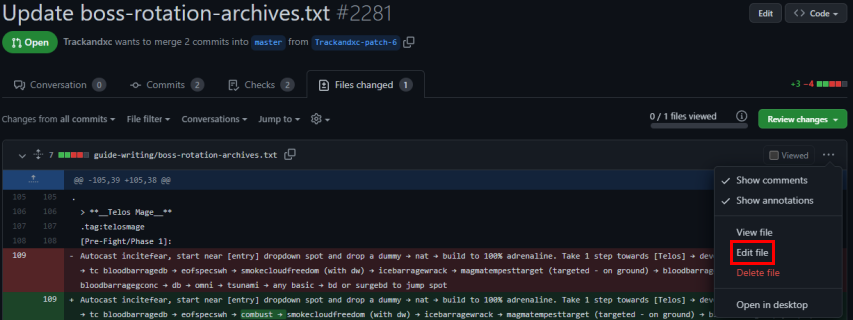 ⬥ In this case, we break the single large message into 2 separate messages by hitting
Enter, entering a single period . and hitting Enter again. Then commit these changes, and it will update the pull request.
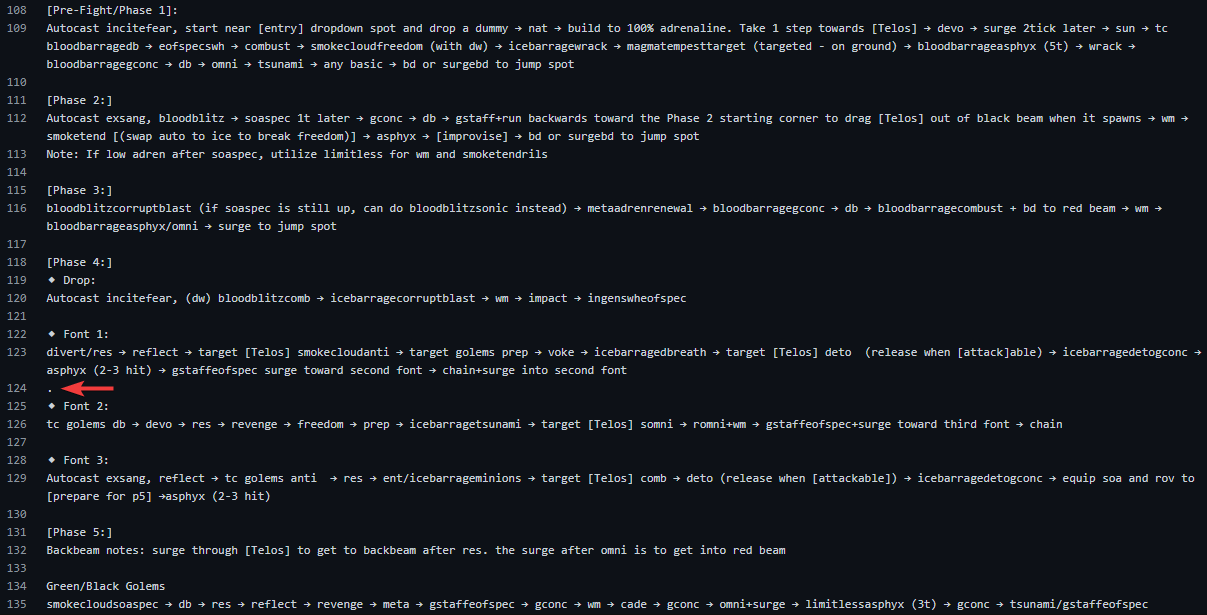 ⬥ Your Pull Request should now be error-free once the checks complete again.
Checks Are Stuck
⬥ Rarely, the style and syntax checks may get stuck, neither succeeding nor failing. In such an event, usually merging a different minor pull request tends to resolve the issue.
⬥ Checks can take some time to complete at times, so wait for at least 20-30 minutes before it is considered an issue.
⬥ In case this occurs, you can contact an editor or staff for assistance.
Your Branch Is 'X' Commits Behind Master
⬥ When you make a new fork, your fork will look like this:
 ⬥ However, after some time it may look something like this:
 ⬥ This is because changes might have happened to the main repository (
'X' commits behind) and it is no longer in-sync with your copy. This may cause issues when making a pull request.
⬥ To resolved this, the simplest solution is to delete your fork, and make a new fork of the PvME repository.
⬥ This will give you a fresh, up-to-date copy, and get rid of any lingering issues.
For more experienced users: PvME squashes and merges all pull requests. This causes a difference in commit hashes, which is why your branch will be both ahead AND behind in commits after a pull request is accepted. You can clean this up by discarding commits from accepted PRs and syncing your branch to pvme:master. Or by resetting your branch to pvme:master. Or just delete and start over.|
Pull Requests
Multiple Changes & Updating an Existing Pull Request
⬥ It is possible to include changes to multiple files within the same Pull Request, and to amend files you have already modified as part of that Pull Request.
⬥ This can be helpful to reduce the number of PRs being opened, and remove the need of closing a PR and reopening it if a mistake has been made.
Note: It is assumed you have already forked the repository.
⬥ Consider the scenario: a pull request has been made, with changes to one file, visible in the Files Changed tab.
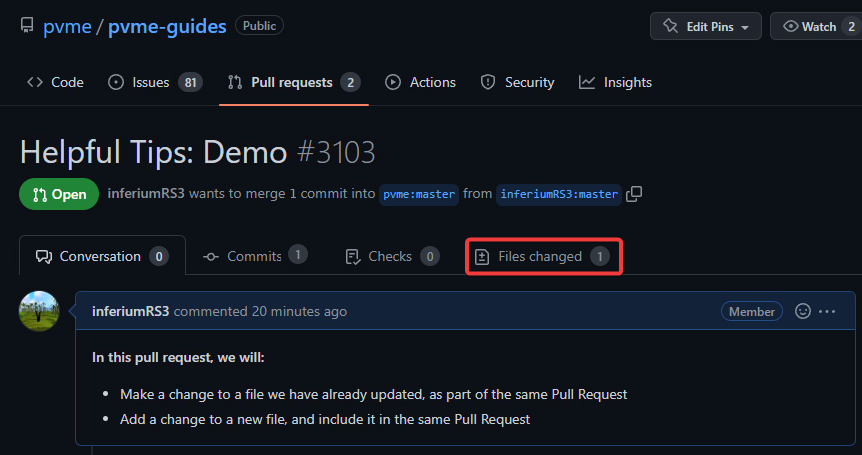
Modify an Existing File in the Pull Request
To make an a change to a file that already contains a change, in the same pull request, do the following.
⬥ Navigate to your Pull Request, and go to the Files Changed tab.
⬥ Go to the top right corner of the file you wish to update, click the three dots, then Edit File.
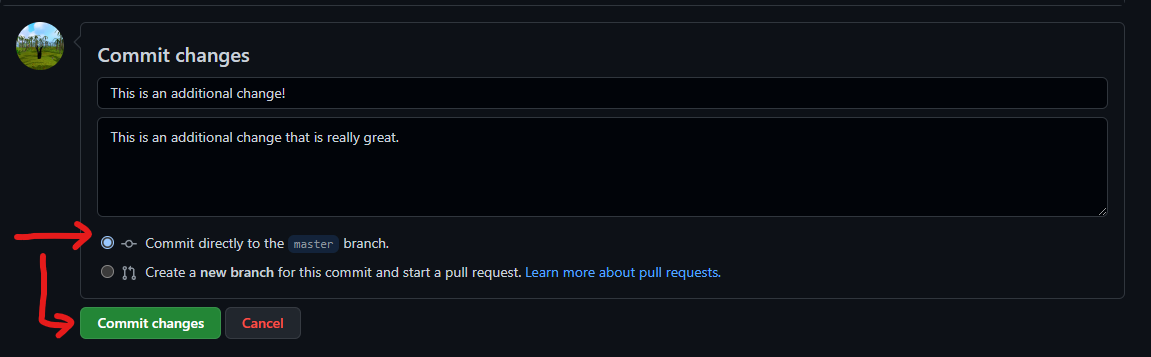
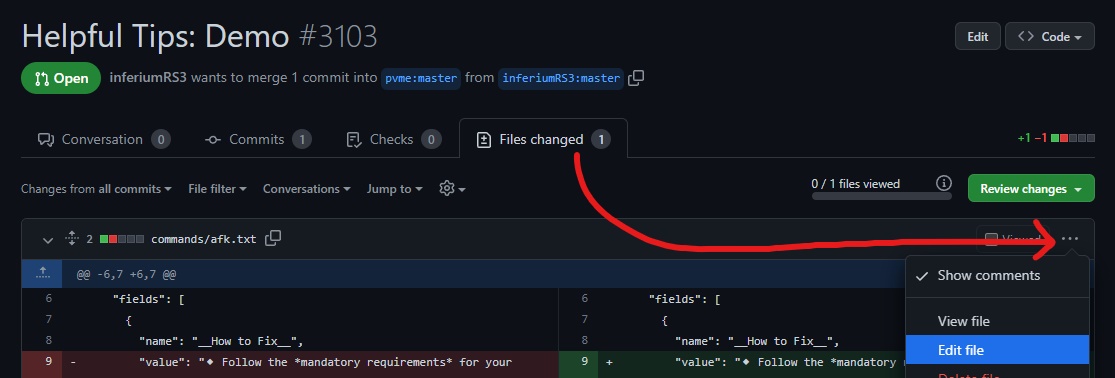 ⬥ Make whatever additional changes you like, and then Commit directly to the xxx branch.
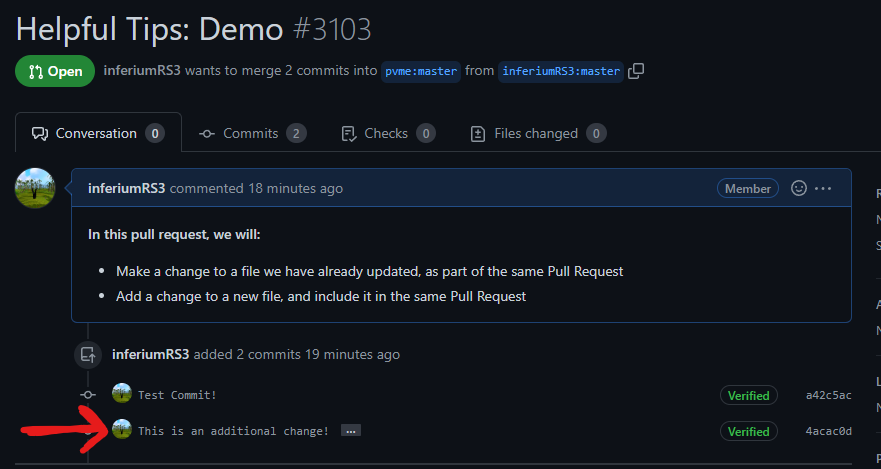
 ⬥ Navigate back to your Pull Request, and the additional change should be included!
Add a New File to the Pull Request
To edit a different file, and include it in the same pull request, do as follows,
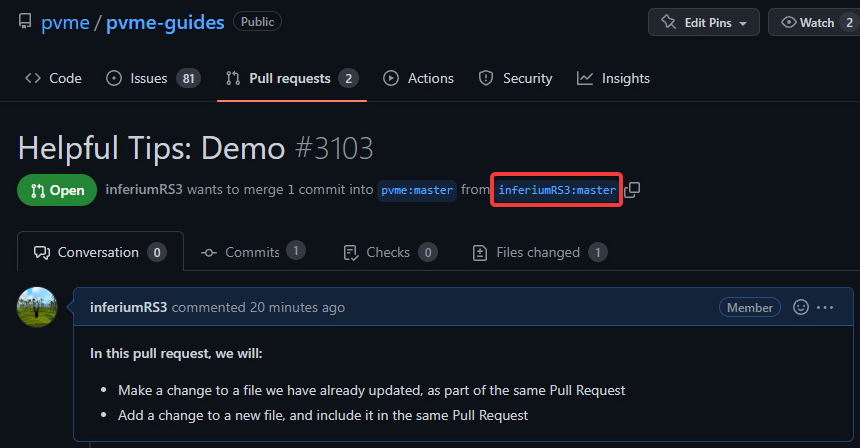
⬥ Navigate to your Pull Request and click on the name of your branch, here:
• You are now looking at the main directory of your own branch, where all files will reside.
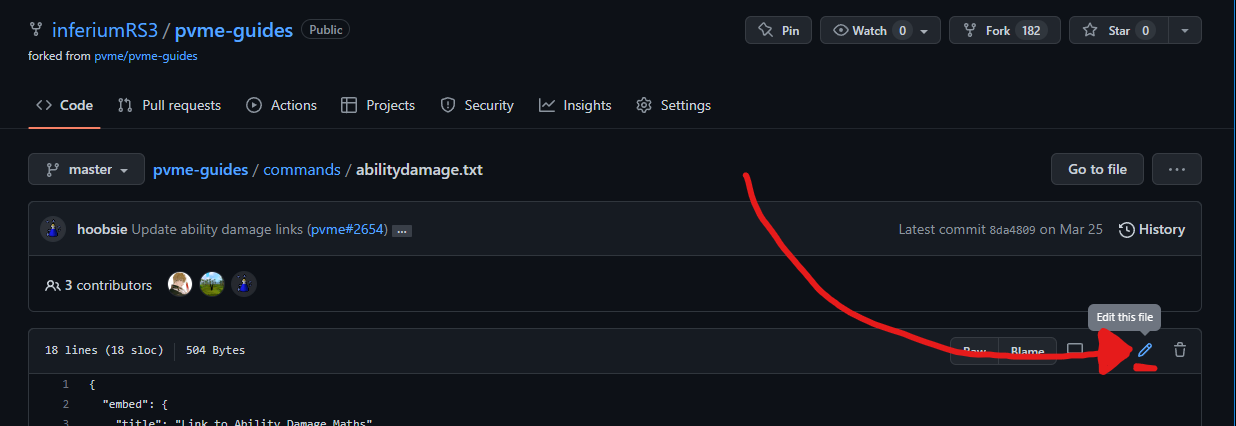
 ⬥ Locate the additional file you would like to change, open it, and then click the edit icon.
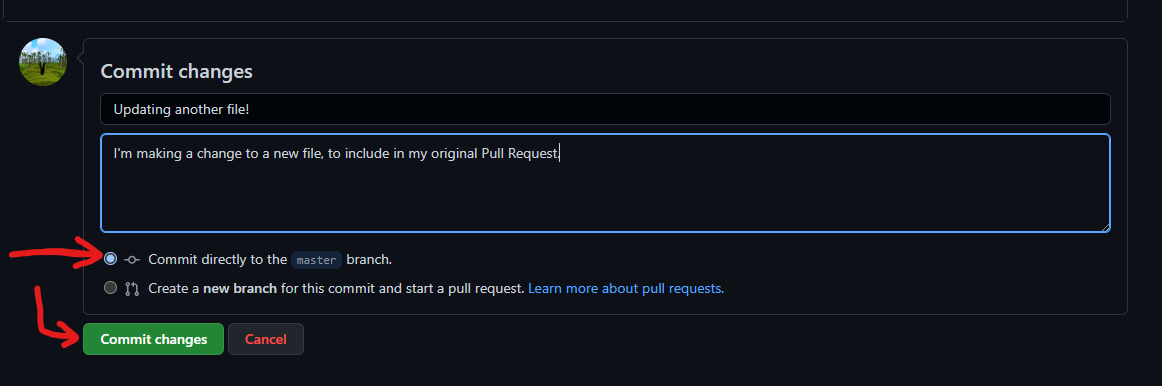
 ⬥ Make whatever changes you like, and then Commit directly to the xxx branch.
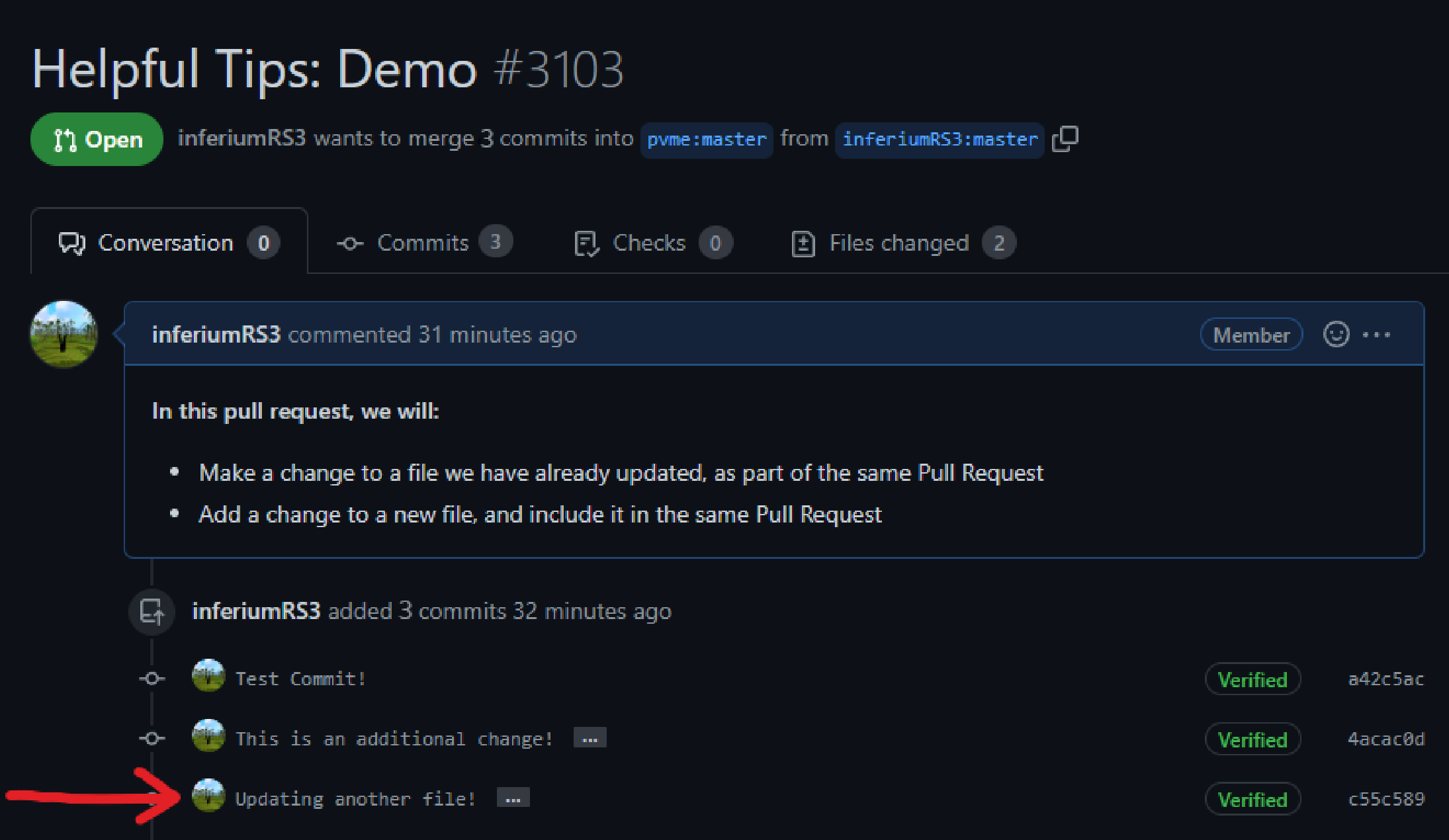
 ⬥ Navigate back to your Pull Request, and the additional file should be included!
Helpful Tips
File Split View
⬥ When opening a Pull Request, it is good practice to look at your changes and see if any mistakes have been made.
⬥ By default, you will see differences between your changes and the original file in Unified View.
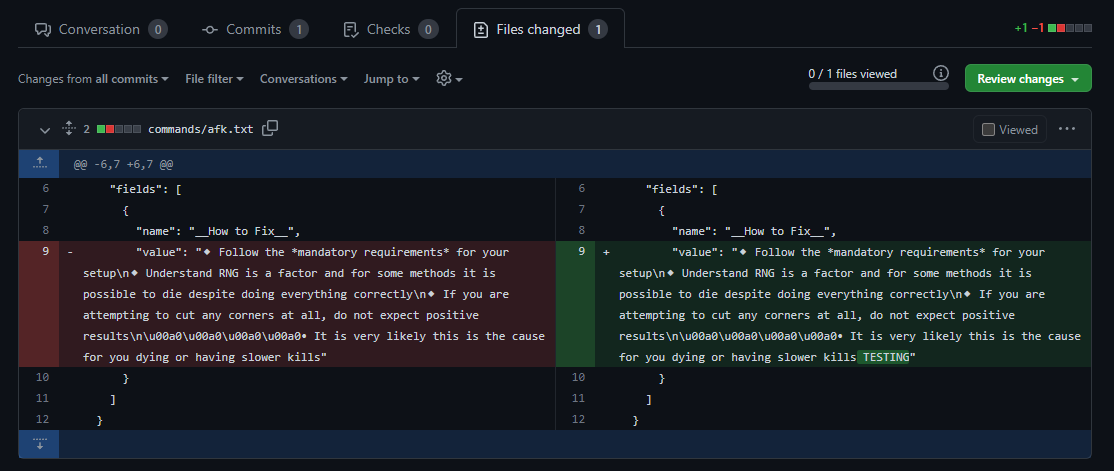
⬥ Sometimes, especially for larger changes, it can be helpful to use Split View instead.
⬥ Navigate to your Pull Request, and go to the Files Changed tab.
• By default, you will see unified changes, as shown below:
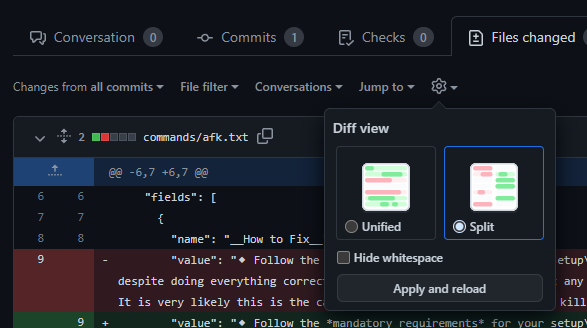
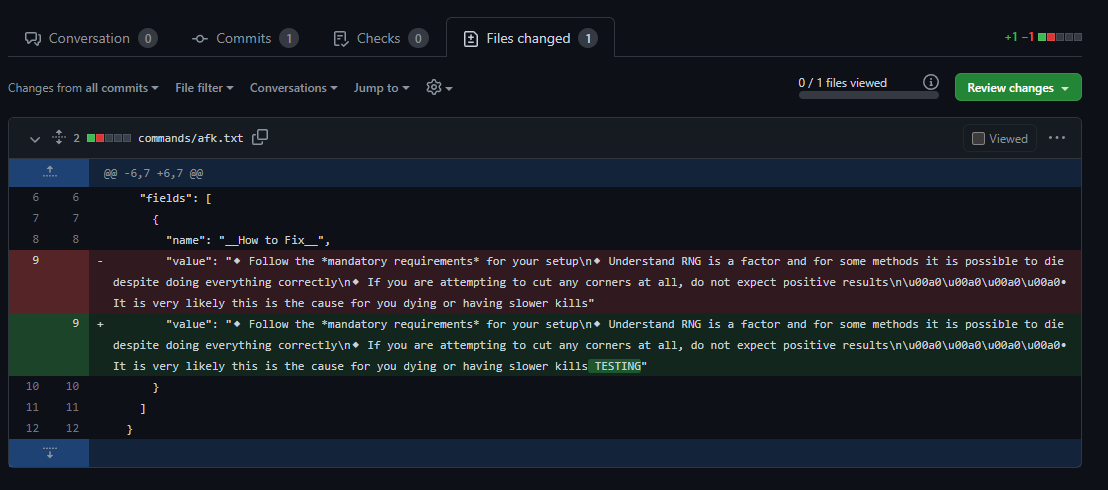 ⬥ Click the settings icon, select Split, and then Apply and reload.
 ⬥ Congratulations! From now on, your changes will be shown in Split View.
• You can reverse the process to go back to a unified view at any time, if you prefer.
Bulk Replacing
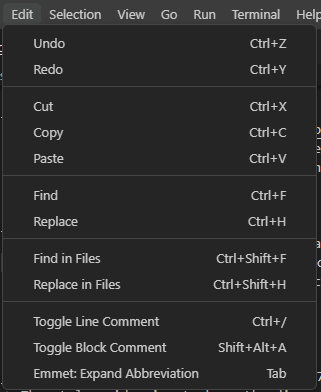
⬥ To bulk replace, either navigate to the Edit menu then select Replace in Files or use the Ctrl+Shift+H keybind to do the same.
 ⬥ Doing this will open the Search/Replace side menu.
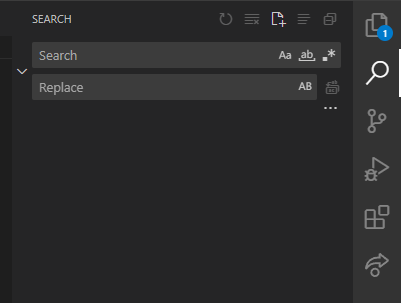 ⬥ The search box is where you enter what you want to replace and the replace box is where you enter what you want to replace it with.
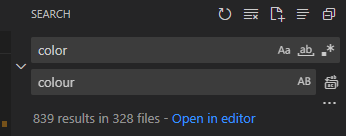 ⬥ However, most of these results aren't what we're looking for so can be dismissed by hovering over the number to the right and clicking the X to dismiss the whole file or the individual Xs below to dismiss individual matches.
 ⬥ When you find something you want to replace. you can either right click and click Replace to do it one at a time or you can click the icon to the left of the X to replace all matches in a file.

Source record
By PvME contributors under CC BY-NC-SA 4.0. Navigation and typography adapted. Original sanitized source HTML and its text hash are retained separately. Source channel and message references are repaired using the pinned guide repository and public directory/identity evidence; navigation wording is adapted for the web. Every change is recorded in the reference repair ledger. Unverified destinations and contributor names remain explicitly unavailable. Legitimate external community and attribution links are preserved and labeled. Original media is embedded from providers; media rights are separate from guide-text rights.
Captured 2026-11-10T14:23:59Z. Game-version accuracy is unverified.
MediaWiki draft ↓